Mobile Admin View: Run Staff Scheduling From Your Phone
Manage your dashboard, create jobs, check shift schedules, and message workers from your phone with the admin view in the Roosted mobile app.

If you run events, catering, security, or stage crews, a lot of your week happens away from a desk. You’re walking a venue with a client, checking in a crew at load-in, or covering a shift yourself, and that’s usually when someone needs a job created or a worker can’t find the parking entrance.
Most of the questions that come up on a shift day are simple ones: who’s on duty, who hasn’t checked in, what still needs a signature, and whether next week is covered. The admin view in the Roosted mobile app lets you answer them from your phone, using the same workforce management platform your team already runs on.
What Managers Need From a Mobile Staffing App
On a busy day, a useful staff scheduling app does three things for the manager holding it:
Shows what needs attention. Reviews, transfers, missed punches, and check-ins should surface on their own.
Lets you act on it. Creating a job or messaging a crew should take a minute on a phone keyboard.
Keeps everyone on the same information. What you see on your phone should match what the office sees and what workers receive.
The admin view was built around those three jobs.
What’s in the Roosted Mobile Admin View
Switching to Admin View
Everyone opens the Roosted app in the worker view, the same screen your staff use to see their own information, such as document signing requests and company documents. If you manage a team, open the menu on the left-hand side and tap Switch to Admin View. That one tap takes you from your own records to the tools for running your whole operation.
The Dashboard
The dashboard is the first screen you land on, and it works as a snapshot of everything in one place. The top section lists the items waiting on you:
Pending reviews
Pending worker transfers
Time tracking issues
Upcoming check-ins
Below that are your live numbers: total shifts, workers on duty, and active workers. Further down you’ll see payroll projections, along with any pending HR documents and signings. You know where things stand and which follow-ups are yours before you open your laptop… which on a show day might not happen until midnight.
Creating Jobs With Saved Locations
You can create new jobs right from the app. Enter the job details and choose a location, and your saved locations and addresses are already there, so the hotels, convention centers, and private venues you book every month don’t need to be retyped. If it’s a new venue, save it as a location while you’re creating the job. When everything looks right, tap Create Job.
For event staffing companies and caterers that rotate through the same handful of venues all year, saved locations remove one of the slowest parts of mobile data entry.
List, Calendar, and Monthly Schedule Views
Once your jobs are set up, you can view the shift schedule in whichever layout suits the moment. Each view has its own tab:
List view gives you a quick rundown of what’s coming up.
Calendar view shows how shifts line up against each other.
Monthly view helps you plan further ahead.
List view is the one you’ll probably open between conversaitons at a venue, and monthly view is where you go when a client asks about coverage for a holiday party six weeks out.
Chat and Announcements
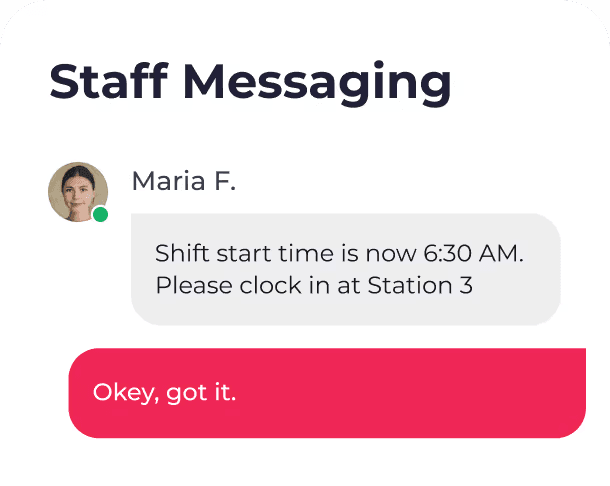
The chat tab keeps your full message history in one place. To start a new conversation, create a chat and select the workers you want to include. You can filter by skill set to find the right people quickly, so a question about Friday’s bar setup goes only to your bartedners.
You can also create an announcement and send it to all of your workers at once, or pick specific workers to receive it. A parking change at a venue you use every week can go to everyone, and a dress code reminder for a single event can go only to that crew.
How the Admin View Fits Into the Rest of Roosted
The mobile admin view sits on top of the same platform you use on desktop. Workers clock in and out through Roosted’s Mobile Time Clock, which is where the time tracking issues and on-duty numbers on your dashboard come from. Jobs you create on your phone land on the same staff scheduling calendar, where Smart Shift Matching can help fill them with qualified workers based on skill sets, availability, and location. Messages and announcements run through Roosted’s real-time communication tools, which cut scheduling back-and-forth by 80%+.
The pending HR documents and signings on your dashboard connect to Roosted’s free, unlimited e-signing, which comes with every subscription… so the paperwork a new hire still owes you shows up right next to their shifts.
Getting Started
If your team already uses Roosted, open the mobile app, tap the menu on the left, and choose Switch to Admin View. Start with the dashboard for a day or two. Clear the items at the top each morning and you’ll quickly see how much of your routine follow-up you can handle away from your desk. The full video walkthrough shows each screen on a live account.
If you’re new to Roosted, Get Started and see how the dashboard, scheduling, and team messaging work for your next event.